
How to Visualize OpenTelemetry Logs from Sumo Logic API in Grafana
Modern observability platforms provide powerful capabilities for collecting, searching, and analyzing application logs. However, engineering teams may want to visualize this data in Grafana, especially when Grafana is already their preferred platform for operational dashboards.
If your applications use OpenTelemetry to collect logs and Sumo Logic as the backend, you can use the Sumo Logic API to retrieve log data and visualize it in Grafana. The Grafana Infinity plugin makes this possible by allowing dashboards to consume data from REST APIs without requiring a custom exporter or an additional data-processing service.
In this tutorial, we will configure Grafana to query logs stored in Sumo Logic and display the results in a table. We will use the Sumo Logic Logs Search API, the Infinity datasource plugin, and Grafana transformations to build a basic log exploration dashboard.
Why Visualize Sumo Logic Logs in Grafana?
Sumo Logic provides powerful log search and analytics capabilities. Grafana, on the other hand, offers a flexible dashboarding experience that many engineering teams already use for monitoring infrastructure, applications, and services.
Integrating the two can provide several benefits:
- Unified dashboards: Bring log data alongside other operational visualizations available in Grafana.
- Flexible visualization: Use Grafana tables and other supported visualizations to present API response data.
- Less custom development: The Infinity plugin can query REST APIs directly, eliminating the need to build a dedicated integration service for straightforward use cases.
- Reusable dashboards: Create dashboards with time-range controls and reusable queries to support troubleshooting and incident investigations.
This approach is particularly useful when teams want Grafana as their visualization layer while continuing to use Sumo Logic for log storage and search.
Architecture
The integration uses a simple three-component architecture:
Sumo Logic → Grafana Infinity datasource → Grafana dashboard
- Sumo Logic: Receives OpenTelemetry logs and stores them for searching and analysis.
- Grafana Infinity plugin: Calls the Sumo Logic API, retrieves the response, and parses the JSON data.
- Grafana: Displays the returned log fields in a table visualization.
The Infinity plugin acts as the bridge between Grafana and the Sumo Logic API. No separate application is required for this basic integration.
Prerequisites
Before getting started, ensure you have:
- A Sumo Logic account with access to the relevant log data.
- OpenTelemetry logs already ingested into Sumo Logic.
- A running Grafana instance.
- The Grafana Infinity datasource plugin installed.
- Sumo Logic API credentials with permission to access the required logs.
You will also need to identify the correct Sumo Logic API endpoint for your deployment. In this example, we use the EU endpoint: https://api.eu.sumologic.com.
Step 1: Configure Sumo Logic as a Grafana Datasource
Grafana Infinity supports querying external REST APIs, including APIs that return JSON responses.
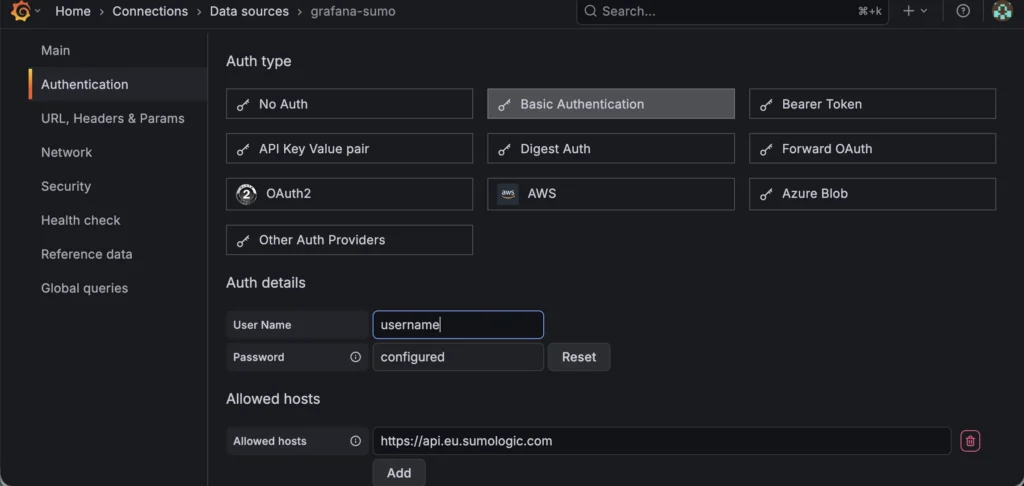
In Grafana, navigate to Connections → Data sources and add a new datasource. Select Infinity as the datasource type.
Open the datasource configuration screen and configure the following settings:
Datasource configuration
- Name:
sumo-logs - Type: Infinity
- Auth type: Basic Authentication, if supported by your Sumo Logic API authentication setup.
- Username: Your Sumo Logic access ID.
- Password: Your Sumo Logic access key or secret.
Under Allowed hosts, add the API host corresponding to your Sumo Logic deployment. For example:
Replace the region with the appropriate endpoint for your Sumo Logic account.
Click Save & test to save the configuration and validate connectivity, where supported by the datasource’s health check.
Security note: Use credentials with the minimum required permissions. Avoid embedding secrets directly in dashboard queries or sharing exported dashboards containing sensitive configuration.
Step 2: Configure the Infinity Query
Create a new Grafana dashboard and add a panel. Select your newly configured Infinity datasource.
In the Infinity query editor, configure the request as follows:
| Setting | Value |
|---|---|
| Type | JSON |
| Parser | JQ |
| Source | URL |
| Method | GET |
| URL | https://api.eu.sumologic.com/api/v1/logs/search |
Use the API endpoint appropriate for your Sumo Logic deployment.
Next, configure the URL query parameters.
| Key | Value |
|---|---|
q | _index="sumologic_default" "JDBC begin transaction failed" | limit 10 |
from | ${__timeFrom:date:iso} |
to | ${__timeTo:date:iso} |
The q parameter contains the Sumo Logic search expression. In this example, the query searches for logs containing the phrase JDBC begin transaction failed within the specified index and limits the results to ten records.
The from and to parameters use Grafana’s dashboard time range. When you change the time picker, Grafana can pass the corresponding time boundaries to the API.
Important: Confirm that the endpoint and request parameters match the Sumo Logic API available to your account. If your deployment uses the Search Job API, the request method, payload, and result-retrieval steps may differ from this example.
Step 3: Transform Timestamp Fields
After configuring the query, inspect the returned JSON data in the panel editor.
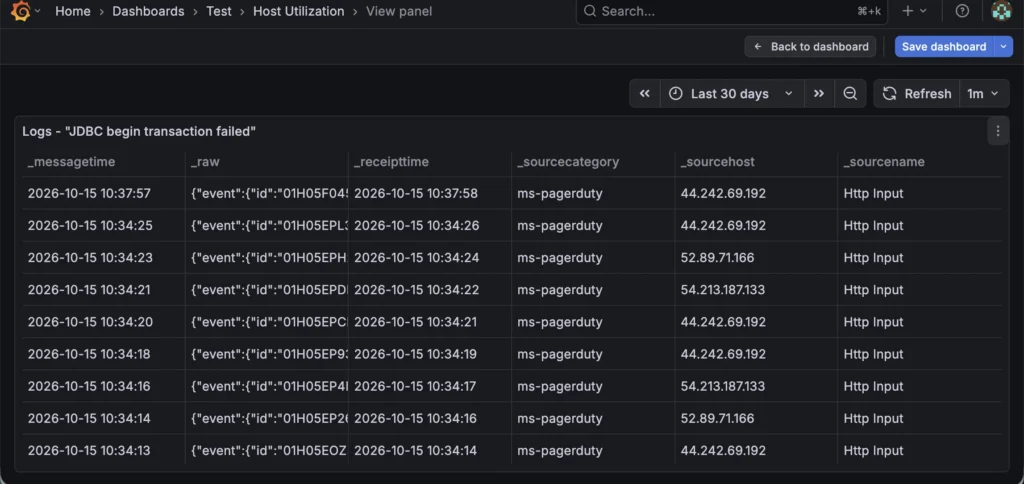
Sumo Logic responses can include fields such as _messagetime and _receipttime. To display these values correctly in Grafana, configure the appropriate field types.
Under Transformations, select Convert field type.
Configure the following transformations:
| Field | Convert to |
|---|---|
_messagetime | Time |
_receipttime | Time |
The message time represents when the log event occurred, while the receipt time represents when Sumo Logic received the event. These timestamps can help you investigate ingestion delays and understand the sequence of events.
Ensure the API response contains these fields and that their values are compatible with Grafana’s time conversion. If the timestamps are returned as strings or in a different format, additional parsing may be required.
Step 4: Visualize Logs in a Grafana Table
Once the query and transformations are configured, select Table as the panel visualization.
Grafana will display the returned log records as rows, with available JSON fields mapped to columns. Depending on the response, these may include timestamps, log messages, source information, and other metadata.
You can customize the table by adjusting column widths, field names, time formatting, and column order. You can also add filters and configure the panel to use the dashboard’s selected time range.
For example, the dashboard can help you inspect JDBC transaction failures, identify recurring error messages, and compare when events occurred with when they were ingested.
Start with a small result limit to keep the panel responsive. Increase the limit only after validating the API’s pagination, response structure, and performance characteristics.
Conclusion
Visualizing OpenTelemetry logs from Sumo Logic in Grafana provides an alternative way to explore operational data without building a custom integration service for every dashboard.
With the Infinity datasource plugin, Grafana can consume REST API responses, parse JSON data, and display log records in a table. Dynamic time-range parameters and timestamp transformations make the resulting dashboard more useful for day-to-day troubleshooting.
For production deployments, pay particular attention to API authentication, query limits, pagination, and the performance impact of repeated API requests. Also validate the Sumo Logic endpoint and request format before extending this approach to larger log volumes.
This integration is a practical starting point for teams that want to combine Sumo Logic’s log search capabilities with Grafana’s flexible visualization experience.